
Study Preview
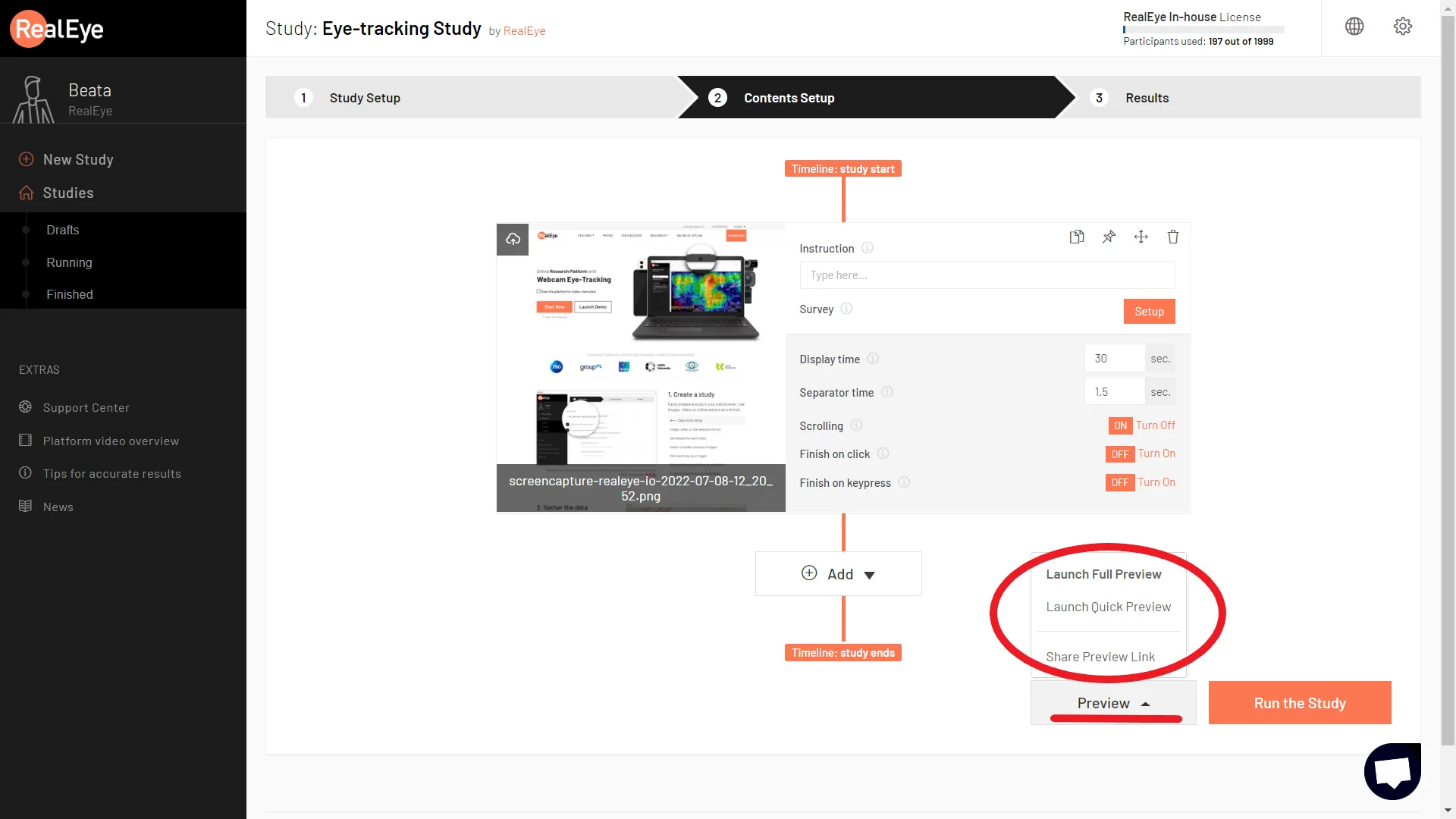
You can see what your study looks like for participants by clicking the Preview button (bottom right on the page). It will open the test in a new tab with all your participant instructions and settings. This way, you can see what the test will look like for participants and if needed, you can make some changes to the study/item settings. You can launch a full preview, with the normal calibration process or a quick preview, with only 5 calibration points, to reduce the time needed for the task.
Preview won't count as one of your results.
You can also share your study preview with anyone with the public preview option. So you can show the study flow to your client or team members to approve the study design without launching the study and using a single participant.
NOTE: Anyone with the link can test the study draft. No results will be stored until the study is launched. The public preview link is exactly the same as the launched study participation link.
NOTE2: You can mark the option to save preview results. These tests will count as regular participants' results.
#Viewing a running or finished study
Once a study is running or finished, the draft Preview described above is no longer available. You can still open Contents Setup from the study dashboard to review the configured items, their settings, and the survey in a locked, read-only view, but you cannot change anything. A lock symbol covers the contents and the page shows a read-only banner with a Back to study action. This read-only view also appears while the study is still Draft or Reverted but a participant order is awaiting or in progress, because such an order locks content changes. To make changes, switch the study back to Draft once no participant order is locking it — click anywhere on the locked contents to open guidance with the Revert to draft action (when reverting is available).